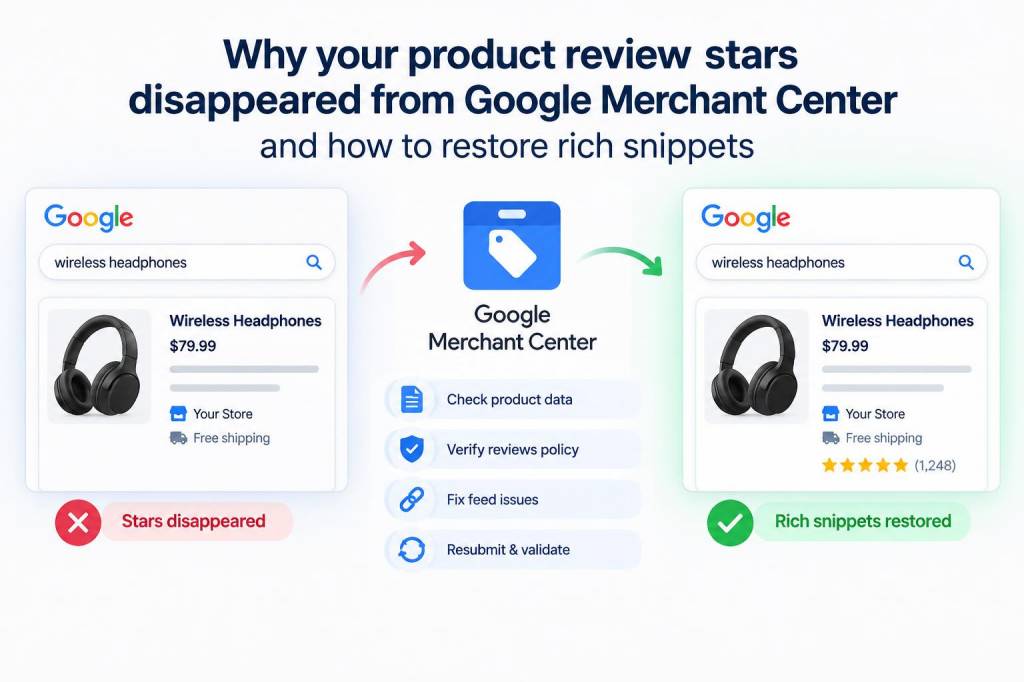
I noticed one morning that the little review stars that used to appear next to my product listings in Google were gone. If you've seen your product review stars disappear from Google Merchant Center — or from Google Search and Shopping results — you're not alone. I've spent the last few weeks digging into why this happens and how to bring rich snippets back, and I want to share the practical steps that worked for me and other merchants I've helped.
What exactly disappeared and why it matters
When I say "product review stars," I'm referring to the review rich snippets that show average ratings and review counts in Google Search and in Google Shopping product cards. These stars increase visibility, improve click-through rate, and build trust. Losing them can mean fewer clicks and lower conversion rates — especially for competitive products like electronics or popular brands such as Apple or Samsung.
Google can remove review stars for several reasons: policy violations, incorrect or missing structured data, feed problems in Merchant Center, or algorithmic changes. The good news is that in most cases you can restore them by fixing the underlying issue.
Common reasons stars disappear
From my experience, these are the most frequent causes:
Structured data errors: Your product pages might have invalid or outdated schema markup. This includes incorrect use of aggregateRating or missing required properties.Fake or incentivized reviews: Google has strict policies against reviews that are not genuine. If reviews appear to be bought, incentivized, or manipulated, Google may remove stars.Mismatch between feed and site data: If Merchant Center feed data contradicts the page markup — for example different product IDs, prices, or missing reviews — Google may stop showing stars.Missing or incorrect seller ratings feed: Seller ratings for retailers require a separate Approved review source or the correct automated feed. If this feed is broken, you can lose stars.Manual action or algorithmic filtering: Google sometimes applies manual actions or algorithmic filters to snippets if patterns of low-quality or spammy content are detected.Policy updates: Google periodically updates how it displays review snippets and the eligibility rules, which can change what qualifies for stars.Quick checklist I run when stars disappear
Whenever I see stars vanish, I follow this checklist to quickly identify the root cause. You can use it as a diagnostic flow:
| Step | What I check |
| Structured data validation | Test pages with the Rich Results Test and Schema.org validation tools |
| Merchant Center diagnostics | Check feed errors, disapprovals, and policy notifications |
| Review authenticity | Audit review sources for fake or incentivized reviews |
| Feed-page consistency | Ensure product IDs (GTIN, MPN, offerId) and prices match |
| Seller ratings feed | Verify feed status or sign up for Google’s review partners |
| Recent site changes | Identify site updates, plugin changes, or CDN issues |
How I fixed structured data issues
Structured data problems are the most common cause. Here's the approach I used.
Run the Rich Results Test: Paste your product page URLs into Google's Rich Results Test. Look for warnings and errors related to Product and aggregateRating. If aggregateRating is missing or flagged, that's a red flag.Check required fields: For review snippets to appear you need proper Product schema. Minimum helpful properties include name, image, description, and aggregateRating (which itself must include ratingValue and reviewCount).Avoid marking up self-serving content: Do not mark up excerpts that are just marketing copy. Mark up real user reviews or link to a recognized third-party review provider.Use JSON-LD: I prefer JSON-LD because it's easier to maintain across templates. Ensure the JSON-LD is injected server-side or via SSR so Googlebot can read it.Fixing feed and Merchant Center problems
Next, I checked Google Merchant Center:
Feed diagnostics: Merchant Center shows product-level warnings and disapprovals. Fix item-level problems such as missing identifiers (GTIN, MPN) or policy violations.Review status messages: Look under the "Products" and "Diagnostics" tabs. If Google disabled specific products or flagged them for policy reasons, take corrective action then request a review.Ensure data consistency: Price, availability, and product IDs in the feed must match the landing pages. Discrepancies can trigger snippet removal.Restoring seller ratings and third-party review feeds
Seller ratings (the aggregated star ratings for merchants) are separate from product review snippets. To restore those:
Review partner feeds: Make sure you’re signed up with an approved review aggregator (Trustpilot, Bazaarvoice, Google Customer Reviews, etc.) and that the feed is healthy.Google Customer Reviews program: If you use Google’s own program, check the survey opt-in and merchant center status. A misconfigured opt-in can stop data collection.Structured review feed: If you’re sending review data directly via a feed, validate the feed format and schedule.Addressing review quality and policy issues
Google is strict about review authenticity. In my experience, these steps matter:
Remove incentivized review language: If reviews include phrases like "free product for review," Google may flag them. Keep reviews organic.Audit for fake reviews: Use tools and manual checks to find suspicious patterns — multiple reviews from same IPs, identical text across reviews, or unrealistic rating spikes.Respond to policy notices: If Merchant Center or Search Console notifies you about review-related issues, address them and then request reconsideration where applicable.Monitoring and verification
After making fixes, patience is key. Google needs time to recrawl and re-evaluate pages and feeds.
Request indexing: Use URL Inspection in Search Console to request a recrawl of updated product pages.Monitor Search Console: Watch for rich result enhancements and index coverage reports.Check Merchant Center performance: The Products dashboard shows changes over time. Allow up to a few weeks for stars to reappear across Search and Shopping.Tools and resources I rely on
Here are the tools I used to diagnose and restore rich snippets:
Google Rich Results TestGoogle Search Console — URL Inspection and EnhancementsGoogle Merchant Center — Diagnostics and Feed StatusSchema.org documentation for Product and Review markupThird-party review platforms (Trustpilot, Feefo) and their Google integration docsQuick repair flow I recommend
When you’re ready to act, follow this condensed flow I use with clients:
1) Run Rich Results Test on a sample product page2) Fix any schema validation errors (use JSON-LD)3) Verify feed-product consistency in Merchant Center4) Check for policy flags or manual actions5) Audit review authenticity and remove suspicious reviews6) Request indexing and monitor via Search Console and Merchant CenterIf you follow these steps, you’ll often see stars return within days to weeks. For tricky cases, I've sometimes needed to contact Google Merchant Center support directly or submit a review request if a manual action was involved. If you want, I can review one of your product pages or your Merchant Center diagnostics and give targeted suggestions based on what I find.